
Add Circlo to your Home Screen
הוספת Circlo למסך הבית
It takes about twenty seconds, and afterwards Circlo opens like any other app — no App Store, no download.
לוקח בערך עשרים שניות, ואחר כך Circlo נפתח כמו כל אפליקציה אחרת — בלי App Store ובלי הורדה.
- Opens full screen
- Your own icon
- Nothing to download
- נפתח במסך מלא
- אייקון משלכם
- בלי הורדות
iPhone & iPadאייפון ואייפד
Use Safari for these steps — Chrome on iPhone cannot add apps to the Home Screen.
חשוב לבצע את השלבים בספארי — כרום באייפון לא יודע להוסיף אפליקציות למסך הבית.
-
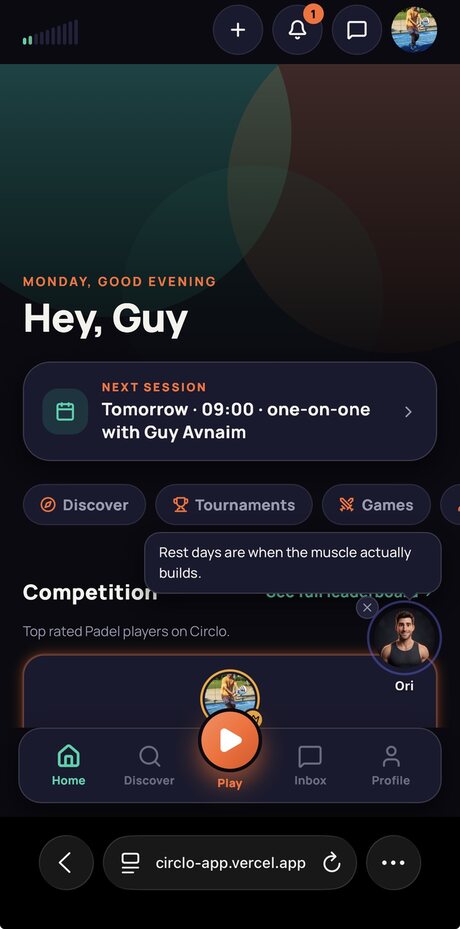
Open Circlo in Safari
Go to circloclub.com. If you are reading this on your phone, you are already here.
-
פותחים את Circlo בספארי
נכנסים ל-circloclub.com. אם אתם קוראים את זה בטלפון — אתם כבר כאן.
-
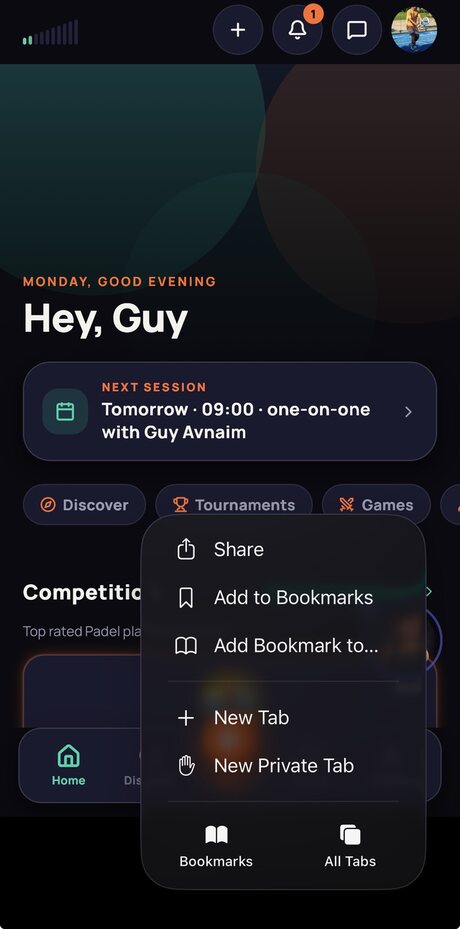
Tap the ••• button
It sits next to the address at the bottom of the screen.
-
לוחצים על כפתור ה-•••
הוא נמצא ליד שורת הכתובת בתחתית המסך.
-
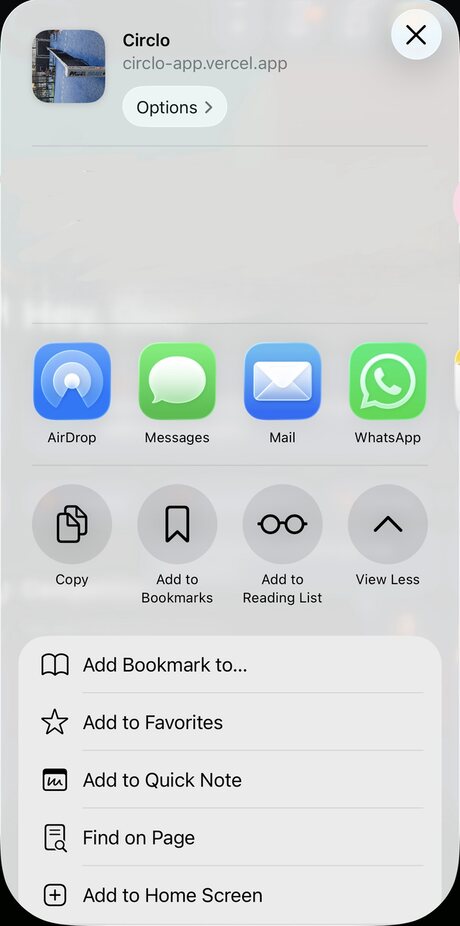
Choose Share, then Add to Home Screen
Scroll down the share sheet — it is near the bottom of the list.
-
בוחרים שיתוף ואז הוספה למסך הבית
גוללים למטה בתפריט השיתוף — האפשרות נמצאת קרוב לסוף הרשימה.
-
Tap Add
Leave Open as Web App switched on — that is what makes Circlo open full screen instead of inside Safari.
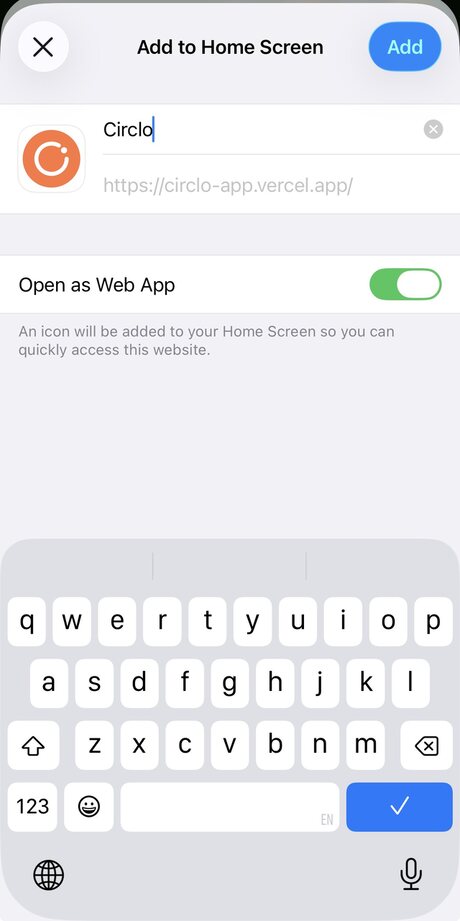
That is it. Circlo is now on your Home Screen with its own icon.
-
לוחצים על הוספה
משאירים את פתיחה כאפליקציית אינטרנט דלוק — זה מה שגורם ל-Circlo להיפתח במסך מלא ולא בתוך ספארי.
זהו. Circlo נמצא עכשיו על מסך הבית עם אייקון משלו.
Androidאנדרואיד
In Chrome the whole thing is two taps.
בכרום זה שתי לחיצות.
-
Open Circlo in Chrome
Go to circloclub.com, then tap the ⋮ menu in the top-right corner.
-
פותחים את Circlo בכרום
נכנסים ל-circloclub.com ולוחצים על תפריט ה-⋮ בפינה הימנית העליונה.
-
Tap Install app
Some phones call it Add to Home screen instead. Confirm, and the icon appears with your other apps.
Chrome often offers this by itself with a banner at the bottom of the screen — tapping that works too.
-
לוחצים על התקנת אפליקציה
במכשירים מסוימים כתוב הוספה למסך הבית. מאשרים, והאייקון מופיע יחד עם שאר האפליקציות.
לרוב כרום מציע את זה מעצמו בבאנר בתחתית המסך — גם לחיצה עליו עובדת.